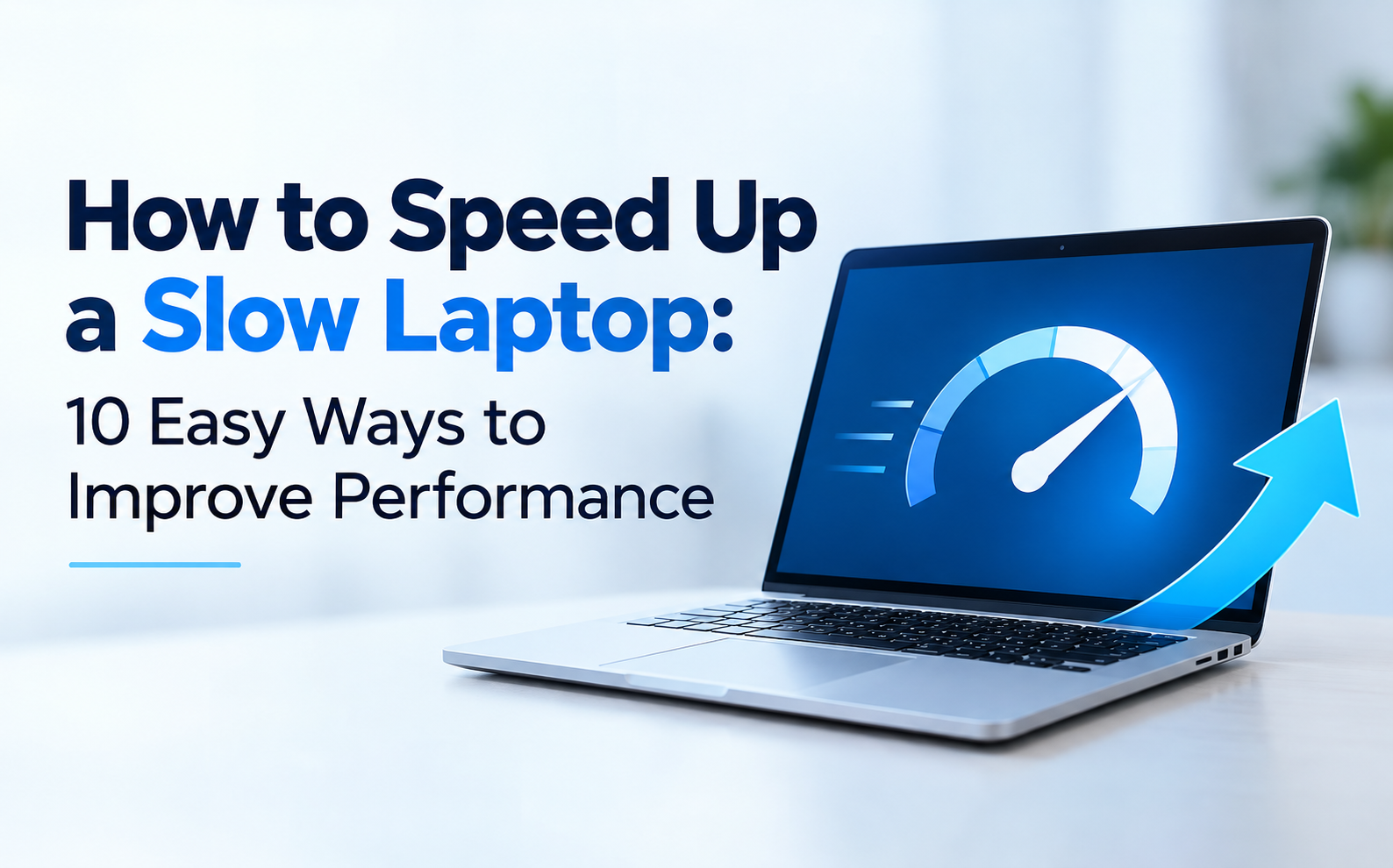
How to Speed Up a Slow Laptop: 10 Easy Ways to Improve Performance
, restarting it can be a useful first step.
2. Remove Unnecessary Programs
Over time, laptops often accumulate applications that are no longer required.
Unused programs can consume storage space and, in some cases, run background processes that affect system performance.
Review the applications installed on your laptop and uninstall programs that you no longer need. Always make sure you know what a program does before removing it.
3. Disable Unnecessary Startup Applications
Some applications automatically start whenever you turn on your laptop.
Too many startup applications can increase boot time and consume system resources.
Check which applications are configured to start automatically and disable the ones you do not need immediately after startup.
This can help your laptop start faster and leave more resources available for the applications you actually use.
4. Free Up Storage Space
A laptop with very limited free storage can experience performance issues.
Start by reviewing:
- Downloads
- Temporary files
- Large videos
- Duplicate files
- Unused applications
- Old installation files
Move important files to an external drive or trusted cloud storage when appropriate.
Keeping your storage organized can also make it easier to locate important documents and files.
5. Check for Viruses and Malware
Malware and unwanted software can affect laptop performance and may cause unusual system behavior.
If your laptop suddenly becomes slow, displays unwanted pop-ups or behaves differently than usual, consider performing a security scan.
Use trusted security software and keep it updated. Avoid downloading applications, files or software from unknown sources.
Professional technical support can also help identify and remove viruses or malware when basic troubleshooting does not solve the issue.
6. Keep Windows and Applications Updated
Operating system and application updates can include security improvements, bug fixes and performance-related improvements.
Check for available updates for:
- Windows
- Device drivers
- Web browsers
- Security software
- Frequently used applications
However, make sure important files are backed up before performing major system changes.
7. Optimize Your Laptop's Power Settings
Power settings can affect how your laptop manages its processor and other system resources.
If you need better performance while working, review the available power and performance settings according to your laptop and Windows version.
For users who are unsure about these settings, professional assistance can help configure the system appropriately.
8. Clean Up the System
Temporary files, unnecessary data and outdated system components can build up over time.
Regular system maintenance can include:
- Removing temporary files
- Cleaning unnecessary data
- Updating applications
- Checking system settings
- Optimizing available storage
- Reviewing background processes
A proper laptop servicing process can help identify several of these issues and improve overall system performance.
9. Consider an SSD or RAM Upgrade
If your laptop is still slow after software optimization, the hardware may be limiting its performance.
Depending on the laptop model, upgrading to an SSD or increasing RAM may provide a noticeable improvement.
Before purchasing hardware, check whether your laptop supports the required upgrade and whether the existing components can be replaced or expanded.
The cost and compatibility of SSD or RAM upgrades can vary depending on the device.
10. Get Professional Laptop Servicing
If your laptop remains slow despite trying basic troubleshooting steps, it may be time for professional assistance.
A professional laptop servicing session can help identify software-related performance issues, unwanted programs, malware, system configuration problems and other factors affecting the device.
SD COMPUTRONIX provides laptop servicing and technical support services that can include device health checks, virus and malware removal, system cleaning, drive optimization, power management optimization, application updates and system configuration.
SD COMPUTRONIX also provides longer-term laptop support options that include software assistance, data transfer, printer and network configuration, Windows restoration and remote support, depending on the selected service plan.
When Should You Consider Laptop Servicing?
You may want to consider professional laptop servicing if you notice:
- Very slow startup
- Applications taking too long to open
- Frequent system freezing
- Unwanted pop-ups
- Unexpected software errors
- High storage usage
- Slow performance while multitasking
- Repeated software-related problems
Getting the problem checked early can help you understand whether the issue is related to software, storage, malware, system configuration or hardware limitations.
How Often Should a Laptop Be Serviced?
There is no single servicing schedule that works for every laptop. It depends on how frequently the device is used, the type of work performed on it and its overall condition.
Business users and people who use their laptops heavily may benefit from periodic maintenance, while occasional users may need servicing only when performance or software problems appear.
Regular backups, software updates, security checks and basic system maintenance can also help keep your laptop in better working condition.
Conclusion
A slow laptop does not always mean that you need to buy a new device. Simple steps such as removing unnecessary applications, freeing storage, checking for malware, updating software and optimizing system settings can often help improve performance.
If the problem continues, professional laptop servicing can help identify the underlying issue and determine whether software optimization, maintenance or a hardware upgrade is required.
SD COMPUTRONIX provides laptop servicing and technical support to help customers maintain their laptops and resolve everyday software-related issues.
Frequently Asked Questions
Why is my laptop running so slowly?
A laptop can become slow because of insufficient storage, too many startup applications, malware, outdated software, background processes, system configuration issues or aging hardware.
How can I speed up my laptop without buying a new one?
Start by removing unnecessary applications, freeing storage space, checking for malware, disabling unnecessary startup applications and keeping Windows and other software updated.
Can malware make a laptop slow?
Yes. Certain types of malware and unwanted software can consume system resources and affect normal laptop performance.
Will adding RAM make my laptop faster?
Adding RAM can improve performance when the laptop does not have enough memory for the applications and tasks you regularly use. However, compatibility should be checked before upgrading.
Does an SSD make a laptop faster?
An SSD can significantly improve boot times, application loading and general system responsiveness compared with many traditional hard drives.
When should I get professional laptop servicing?
If your laptop remains slow after basic troubleshooting, frequently freezes, shows unusual pop-ups or has recurring software problems, professional servicing can help identify the cause.